Start with the input your guitar actually needs
For an electric guitar plugged straight into an interface, use the input and instrument setting recommended by that interface’s manufacturer. If you are recording an amplifier with a microphone, the microphone and preamp become your input path instead. Do not connect an amplifier’s speaker output to an ordinary interface input.
Make the guitar audible before adding MIDI control. Play a hard strum and check that the input is not clipping. Next, play quietly and listen for noise. Leave enough input headroom that a more energetic take will not overload the recording.
Decide whether you are hearing the interface’s direct monitor or the software’s monitored input. Listening to both can make a simple attack sound doubled. If you need an amp effect inside the computer, make sure the path you are hearing actually includes it.
A two-part exercise: chords that leave a gap
- Choose two familiar chords and a comfortable tempo. Use a two-bar phrase in 4/4.
- Play the first chord on beat one of the first bar and the second on beat one of the next. Let them breathe instead of filling every beat.
- Record the two bars and close the loop on the following downbeat. Listen to three repeats before adding anything.
- Add a short answer in the spaces between the chord attacks. Use a different register so it is easy to hear each part.
- Stop overdubbing. Play a lead over the result without recording it.
At 90 quarter-note BPM, those two bars last about 5.33 seconds. At 120 BPM, they last four seconds. Check your own phrase with the loop length calculator. The aim is a comfortable repeating pocket, not a race to fill the available tracks.
When the loop gets crowded
The lead disappears: reduce the rhythm layer before adding gain to everything else. A part that sounds satisfying alone can take up too much space once another instrument arrives.
The loop thumps at every join: listen to the base alone and re-record its ending. A noise at the seam will repeat with the phrase. More reverb may hide it for a moment but makes the source harder to diagnose.
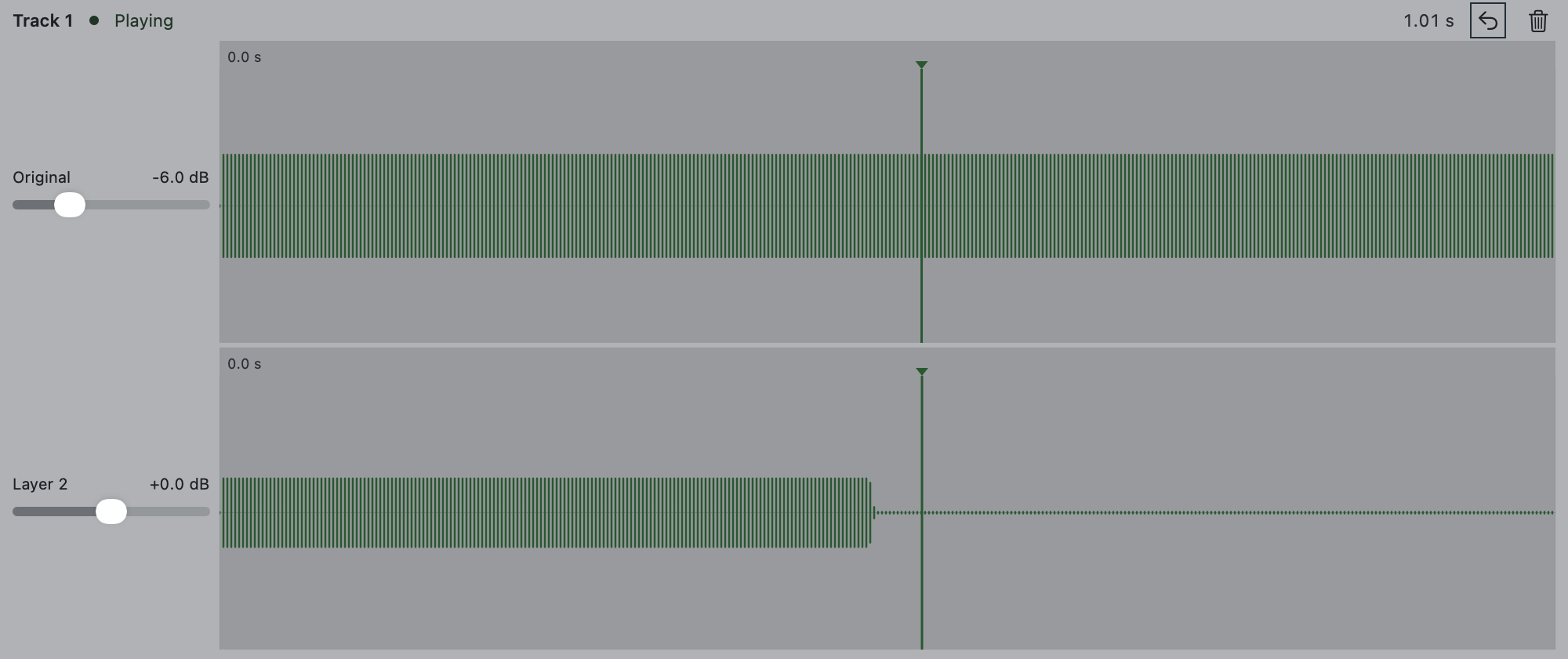
The newest part makes the whole loop worse: remove that take and try fewer notes. In Coherent’s development build, Peel removes the most recent overdub from the selected track while keeping its base.
The Coherent workflow
Coherent brings track recording, overdub layers, and effects into a single looping session. A MIDI footswitch can control the selected track so your hands stay on the guitar. Its current macOS build also exposes previous-track, next-track, and overdub-recovery mappings.
The app is in development and public downloads are not ready. This exercise works with other looping setups too. Read the MIDI footswitch guide before planning a pedal layout, or .