Your pedal tells the app what to do. Your interface carries the sound.
A MIDI message is a control instruction. It does not contain the audio from your instrument. Your guitar or microphone still needs a suitable audio input, and your headphones or speakers still need an output.
That distinction gives you two separate checks. First, can you hear and record the instrument using the app’s controls? Second, can the app see a message when you press the footswitch? If the first check fails, remapping the pedal will not fix the audio path. If the second fails, changing input gain will not help.
Check how your controller connects before buying anything. A USB MIDI controller may connect directly to the computer. A controller with a traditional MIDI connector needs a compatible MIDI interface or another device that provides that connection. A simple non-MIDI sustain switch is not automatically a USB MIDI controller.
Make one mapping work before adding the rest
The following steps describe Coherent’s current macOS development interface. Labels and behavior may change before public release.
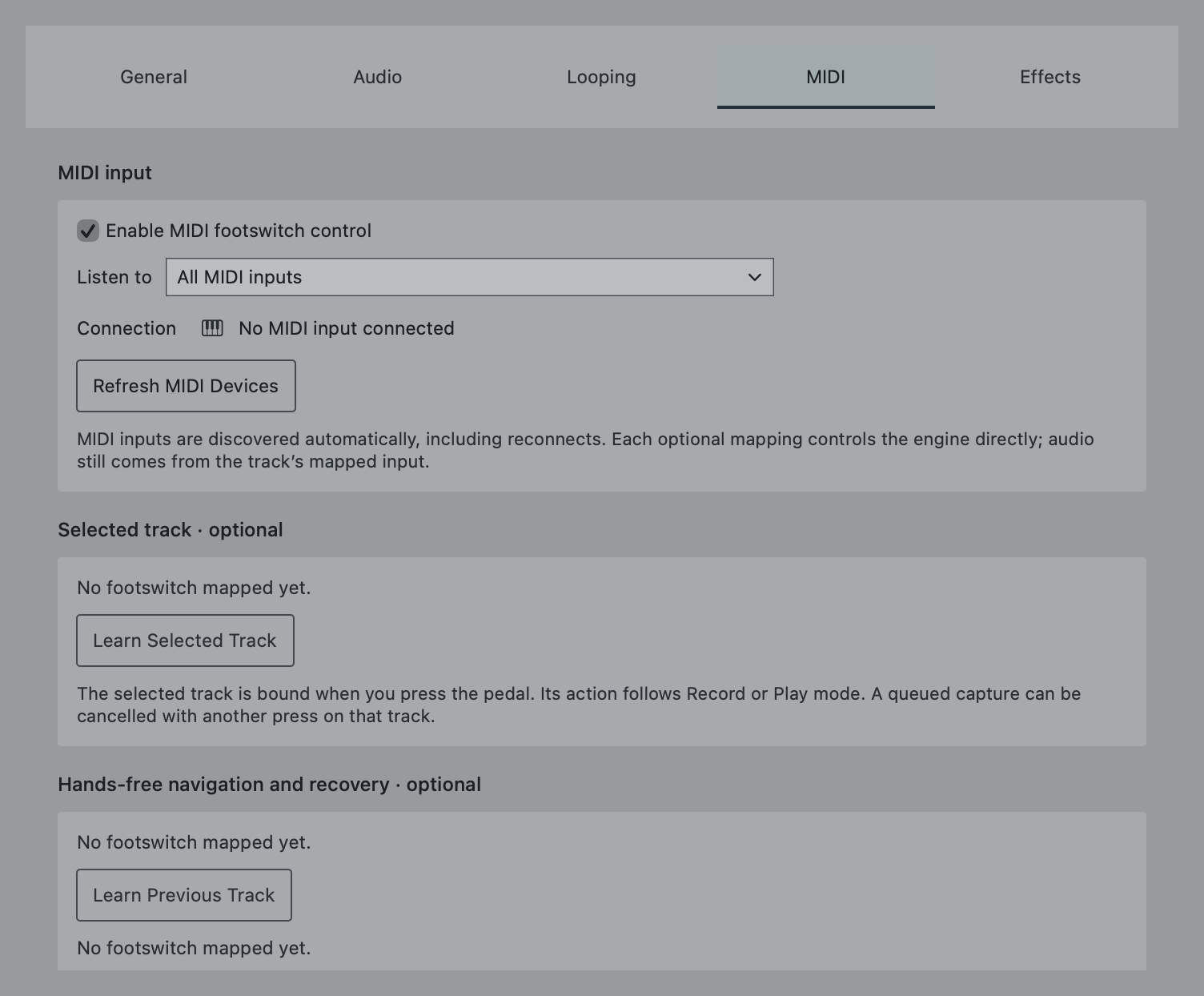
- Open Settings → MIDI and enable MIDI footswitch control.
- Choose your device under Listen to. Use All MIDI inputs if you are still identifying which source is sending messages.
- Check the connection status and input monitor while pressing and releasing the pedal.
- Choose Learn Selected Track, then press and release your intended control once.
- Leave learning mode and test the mapped action on a disposable loop.
The selected-track action follows Coherent’s Record or Play mode. In Play mode, an empty track does not start recording. Confirm the mode and selected track before testing; a working MIDI connection can otherwise look like an unresponsive record button.
Coherent also exposes separate mappings for previous track, next track, Peel Latest Overdub, and Play / Stop All Tracks. Add those after your first mapping behaves consistently. You do not need to fill every slot.
One foot movement can send more than one message
The current controller implementation supports Note, Control Change, and Program Change messages. What matters in practice is the pattern your pedal sends, not just the name printed on it.
| What you observe | What to check |
|---|---|
| A message on press and another on release | Use a behavior that responds to the press without treating the release as a second action. |
| Alternating CC values on successive presses | Check the latching behavior rather than assuming every press sends the same value. |
| One message for each press | Check the pulse behavior and confirm one action per message. |
Use the input monitor to observe several complete press-and-release cycles. Do not guess the message pattern from one press. After changing pedal behavior, test again at the pace you actually play.
Troubleshoot the smallest possible chain
No incoming message: check the cable, the device’s MIDI mode, the selected input, and whether the operating system sees the controller. Coherent provides Refresh MIDI Devices, but refreshing cannot turn a non-MIDI switch into a MIDI device.
The monitor changes but the track does not: check the learned mapping, its MIDI channel or control, the selected track, and Record / Play mode. A message arriving is not the same as that message matching the intended action.
The action happens twice: inspect the release message and repeated-message behavior. Check whether another mapping or controller is sending the same command. Temporarily selecting one specific MIDI input can make the test easier to interpret.
The wrong track responds: separate navigation from the action. Coherent’s Next Track and Previous Track mappings move the selection; they do not record by themselves. Wait until you can see the new selection before pressing Selected Track.
Rehearse recovery, not just recording
Make a short base loop. Add an intentionally unhelpful overdub. Use Peel and listen for the base to remain intact. Then stop all tracks and restart them. Finally, navigate to another track and confirm that the selected-track control acts where you expect.
That sequence answers the questions that matter during a performance: how to enter, how to recover, and how to stop. Run it before building an elaborate pedal layout.
These instructions describe software behavior, not a tested compatibility list for every pedal. Coherent is still in development. for early-access updates, or start with the first-loop exercise while you plan your setup.