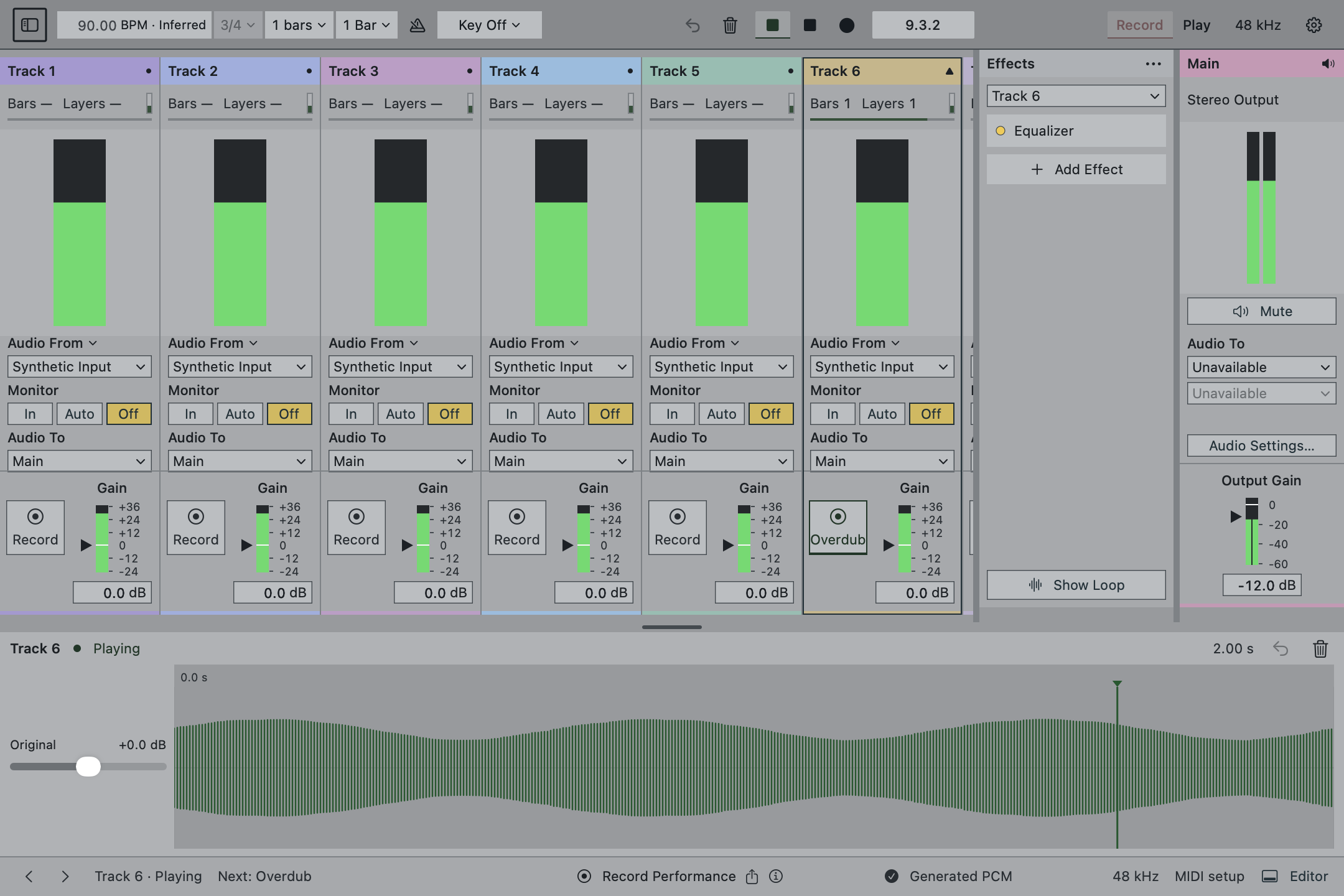
Make the distinction before touching a setting
Stop loop playback. Play a few short, evenly spaced notes while listening through the computer. If each note feels delayed, investigate the monitoring path. Now listen to a recorded loop without playing anything. If the phrase hesitates or rushes at its boundary, investigate the recording length and the way you finished it.
Both problems can exist at once. Use one dry input and one empty session to separate them. A dense arrangement, long reverb, or delay effect can obscure the moment a note starts and make diagnosis needlessly difficult.
Write down the setting you change and the result you hear. Change one thing at a time. Otherwise, a better result tells you very little about which part of the setup caused it.
A buffer number is part of the story
One audio buffer takes buffer frames ÷ sample rate seconds. At 48,000 samples per second, 128 frames correspond to about 2.67 milliseconds. That is the duration of one buffer, not a measurement of your complete input-to-output delay.
A signal passing into and back out of the computer can also encounter input and output buffering, device conversion, driver overhead, and plug-in processing. Two systems using the same buffer setting do not necessarily have identical round-trip latency.
A smaller buffer generally reduces buffering delay but gives the computer less time to complete its work. If you hear clicks or dropouts, increase it and test again. Bypass effects that introduce substantial processing delay while recording. Ableton’s latency guide explains these buffer and processing trade-offs.
Listen to one monitoring path at a time
An interface’s direct-monitor path can let you hear an input without sending it through the computer’s complete processing path. That can be useful, but it does not tell you what your software effects sound like.
If direct monitoring and software monitoring are both audible, you may hear two versions of the same input separated slightly in time. Turn down one path and listen again. Make that choice deliberately instead of trying to solve a doubled sound by moving recorded audio.
For the initial test, use a wired listening path and bypass time-based effects. Keep the test simple enough that you can hear a clean note attack. Once it feels consistent, restore the effects you need one by one.
If the join is wrong, revisit the phrase
A loop that is slightly too long repeats its extra time on every pass. A loop that is too short can cut into the next downbeat. Neither problem is fixed by lowering the audio buffer after the recording has been made.
Count the phrase while listening. Does the first note arrive exactly where the next “one” belongs? For four bars of 4/4 at 120 quarter-note BPM, the intended duration is eight seconds. Use the loop length calculator to check the arithmetic for your phrase.
That number is a diagnostic reference, not proof that the music should be rigidly quantized. A freely played phrase may have its own timing. The useful test is whether its repetition feels intentional.
Know which timing policy you are using
Coherent’s development interface distinguishes Free Loop from BPM Grid. Free Loop estimates tempo from the first phrase; BPM Grid records whole bars at the chosen tempo. Launch quantization governs later track actions. These controls are not a promise that every note will be moved onto a grid.
Before comparing takes, note the active recording policy, tempo, bar count, input, output, and monitoring mode. Test the same short phrase twice. A useful bug report describes the expected boundary and the boundary you heard, rather than just saying that the app felt slow.
Coherent is still in development, and these instructions are not a latency benchmark. We have not published a universal round-trip latency figure. For a clean starting exercise, follow the first-loop guide.